Lesson #4 Building First Level
Finally we are having some fun. In this lesson we are going to build our first level to get more familiar with editor.
Download content
There is some free content in the Unreal Engine marketplace so that everyone can get started without worrying about where to get assets. Go to the Epic Games Launcher's Marketplace and search for Environments in the Browse tab. Then click the free button to access all of the free content. You can use whatever you want, but for this project, we'll be using the Polar Sci-Fi Facility.
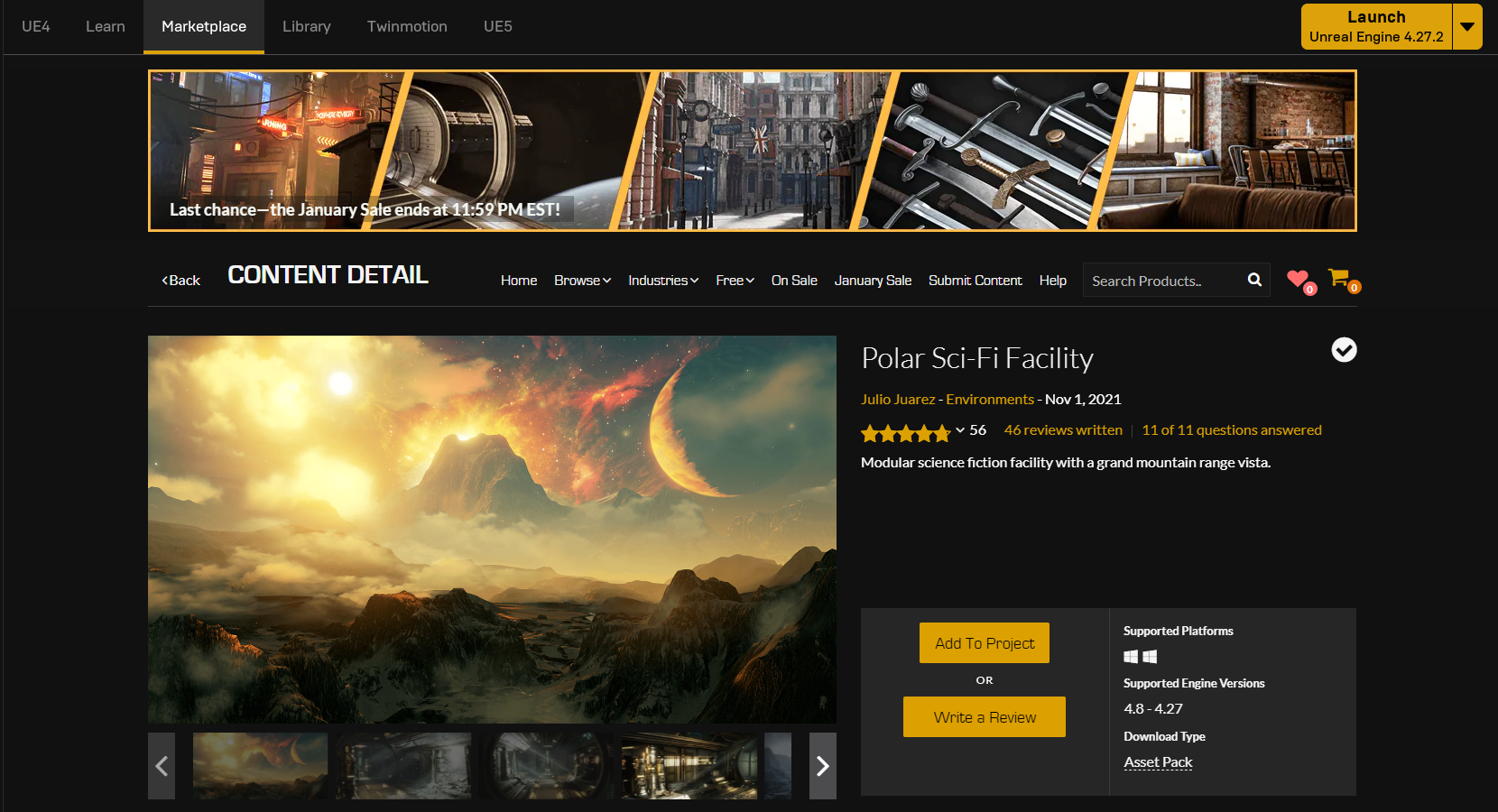
Select your current project by clicking "Add to Project." It will download the entire content. And when it's finished, you'll see new folders in your project content browser (Maps & Polar).
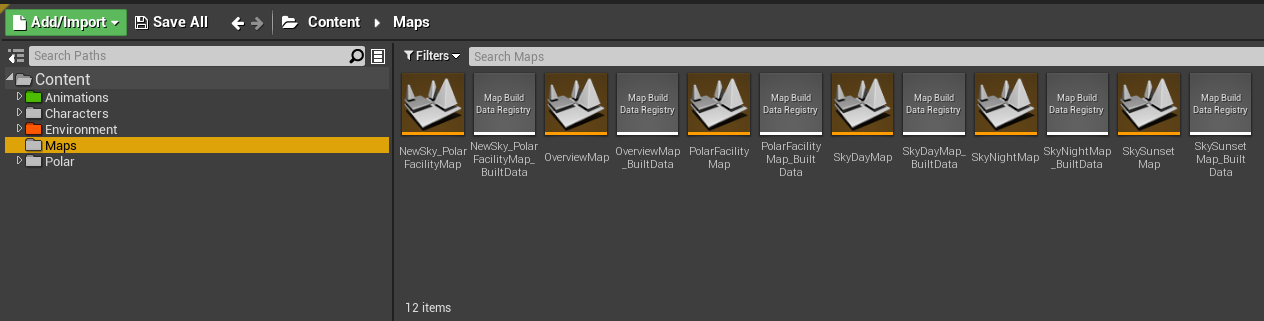
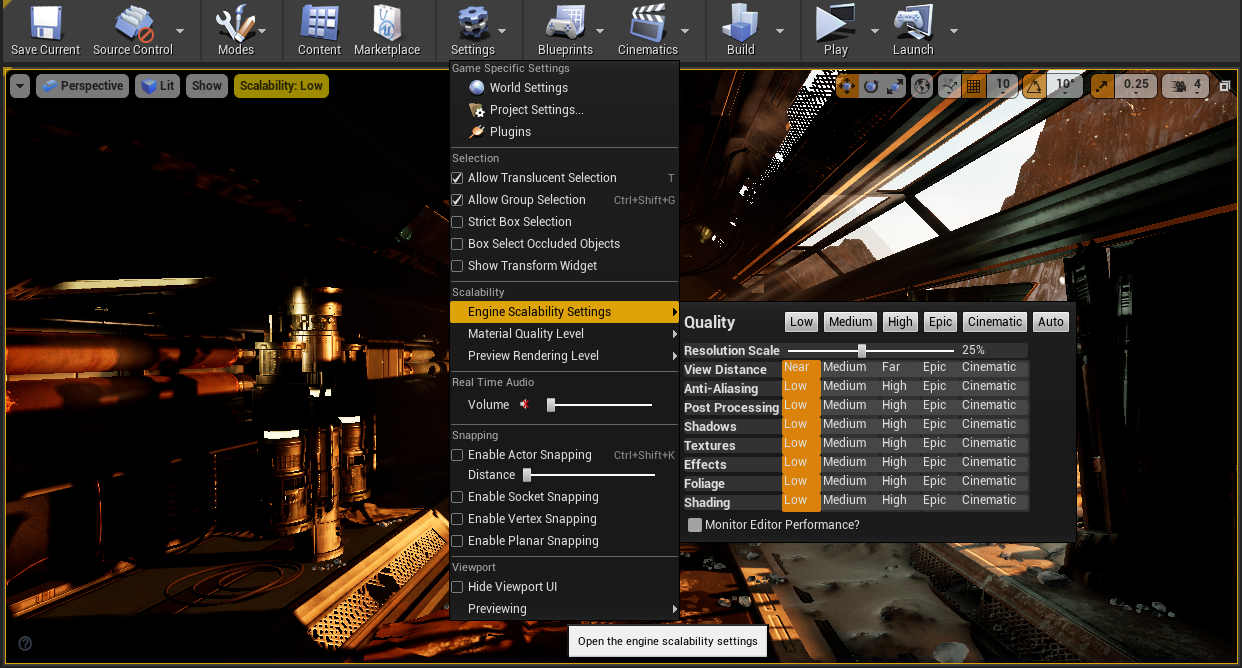
Now open one of the maps to see the demos. You should also save your current empty map so you can return to it later. It will first compile some shaders, and the speed will be determined by your PC. It may also be laggy, and to make it smoother, reduce the engine scalability settings.
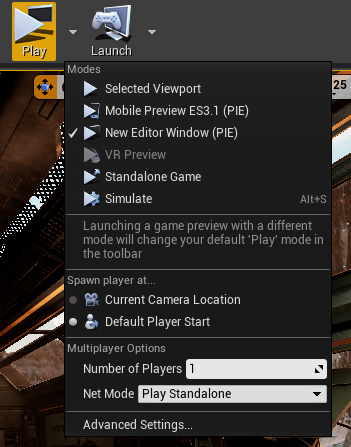
The game will run more smoothly after the shaders have been compiled. After that, you can watch the demo by pressing the play button. You can also choose Play New Editor to view the game in fullscreen mode.
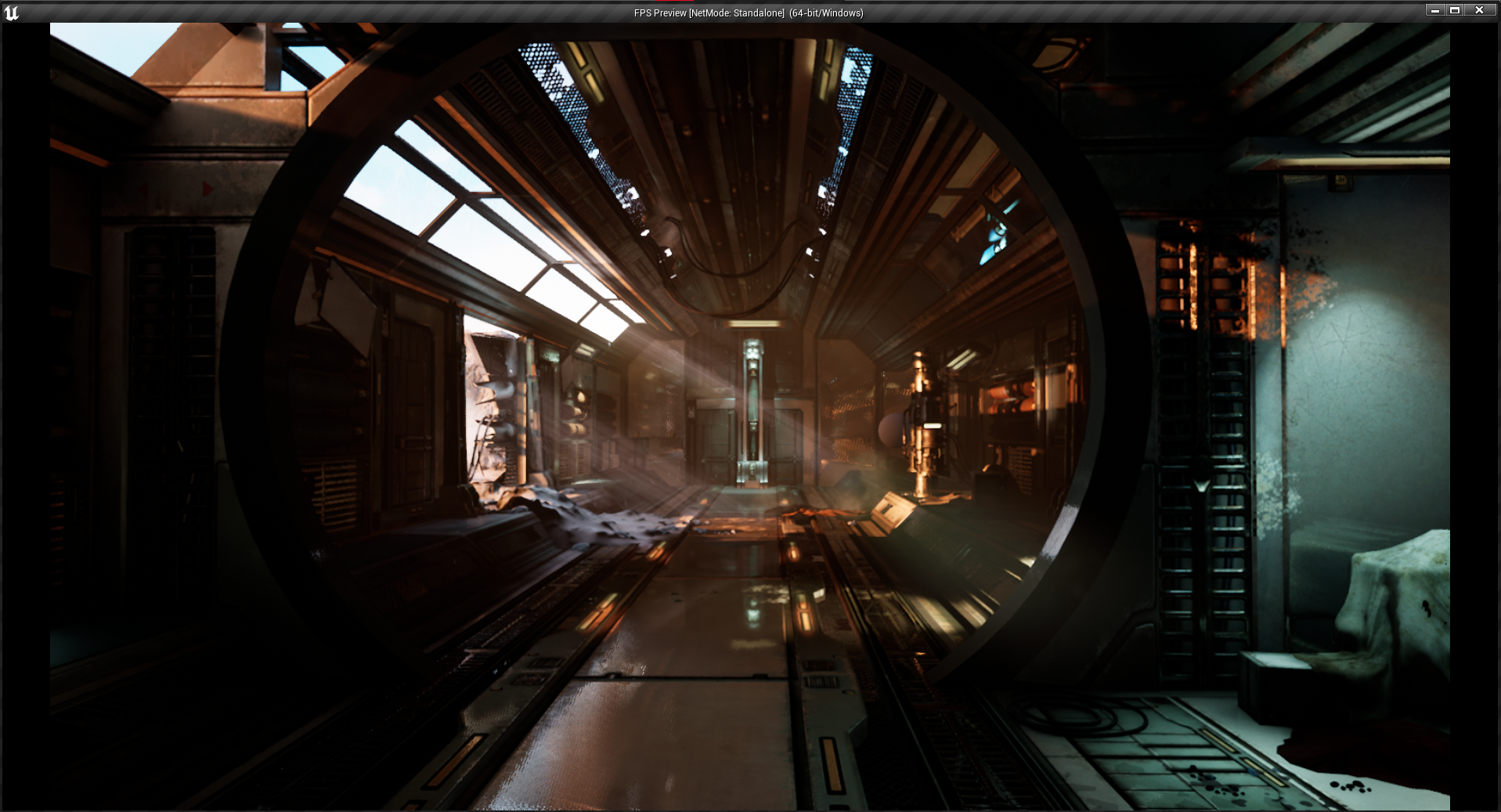
It already appears to be cool... but you haven't done anything. It's not a problem; these are just demonstrations. Polar pack also provides you with every single object from this level. Open your empty map and navigate to the Polar folder in the content browser. All of the game objects for building your level can be found in the Mesh folder. So let's try to make something.
Basic building setup
First, let's expand our floor.
1. Remove the floor. You can do it by selecting it in Outliner and pressing the Del key.
2. Position the plane object
3. Modify the floor's dimensions.
You might also want to change the color of the ground and view mode to better see the object.
1. Set the view mode to Unlit (It wont render shadows and light will be more simple)
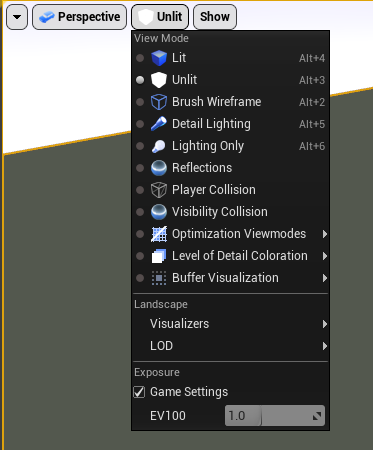
2. Select your floor and double click the material
3. Change the color of the material and hit Apply
(You may experience issues with the player camera after pressing play because you will spawn beneath the plane and the plane only renders from one side.) Simply move the player's start position higher to fix it.)
Building
Let us now construct something. Drag an object from the content browser into the viewport to achieve this. You can change the snapping size to make it easier to build levels and use all of the transform tools at the top to change the object transformation.
You can easily copy objects by holding ALT and dragging
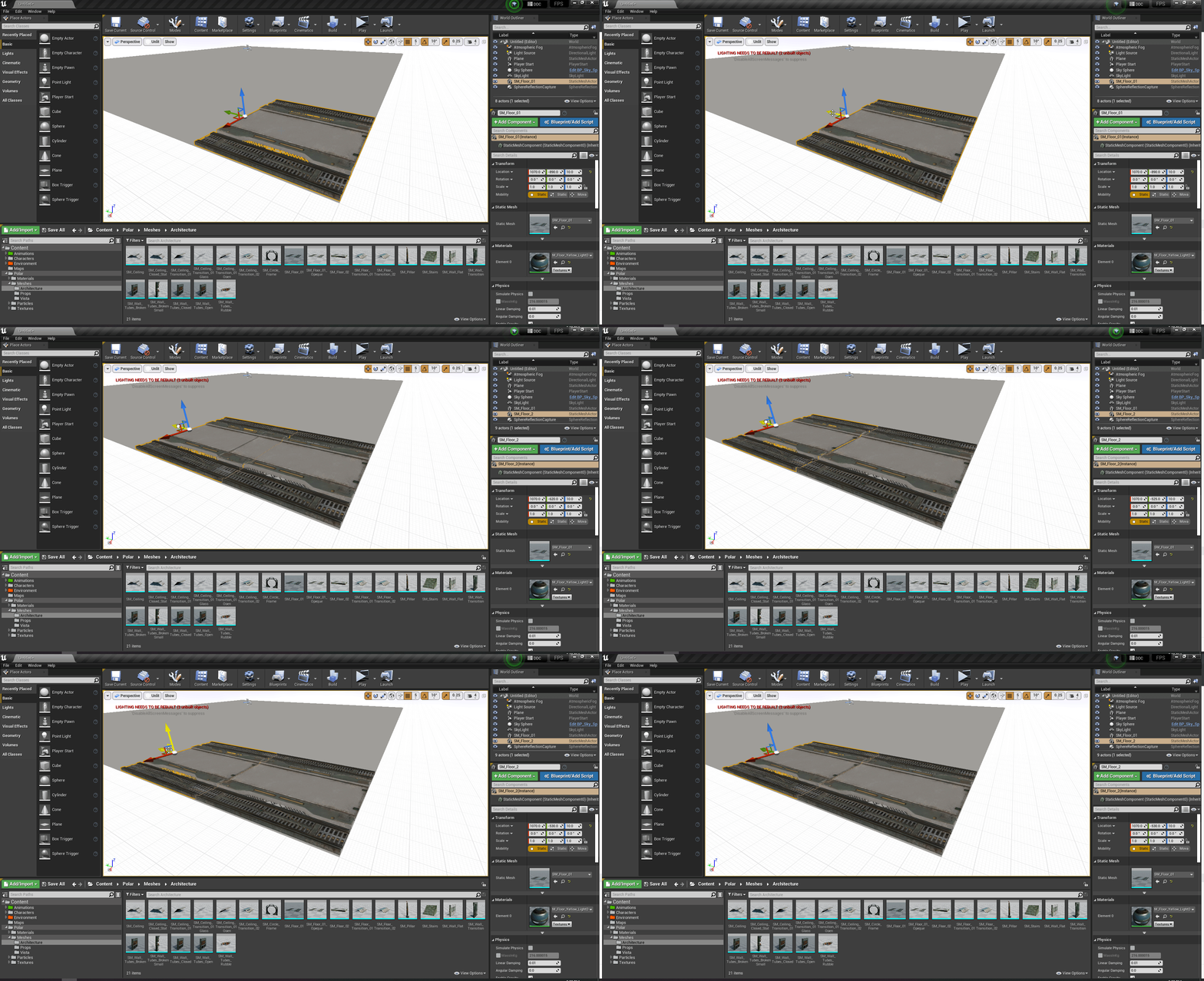
Now, experiment with those objects, and your homework will be to build a basic level. For the beginning, I built something this. Lightning may not appear to be in good shape right now, but we will discuss it in the next lesson.
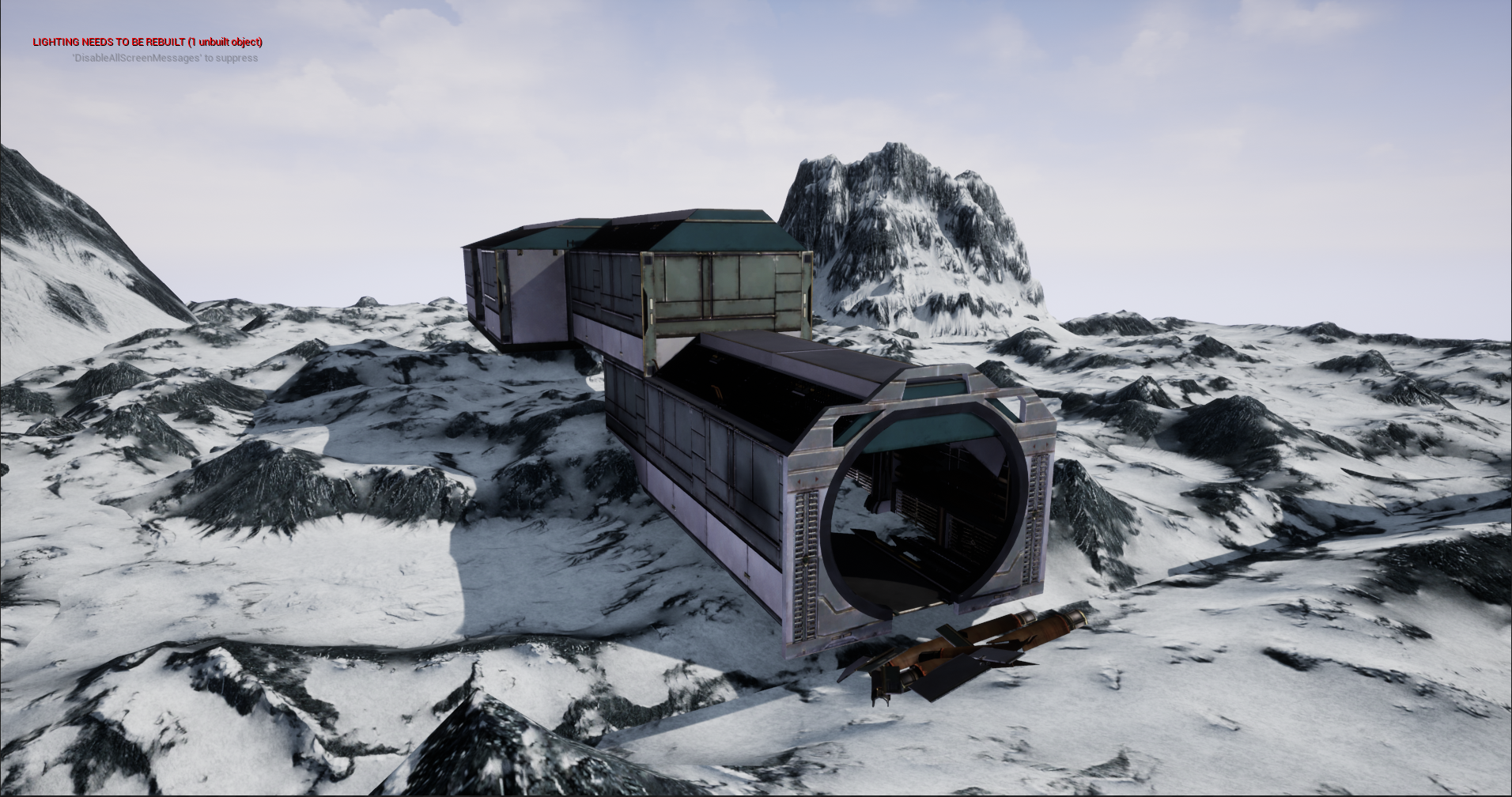
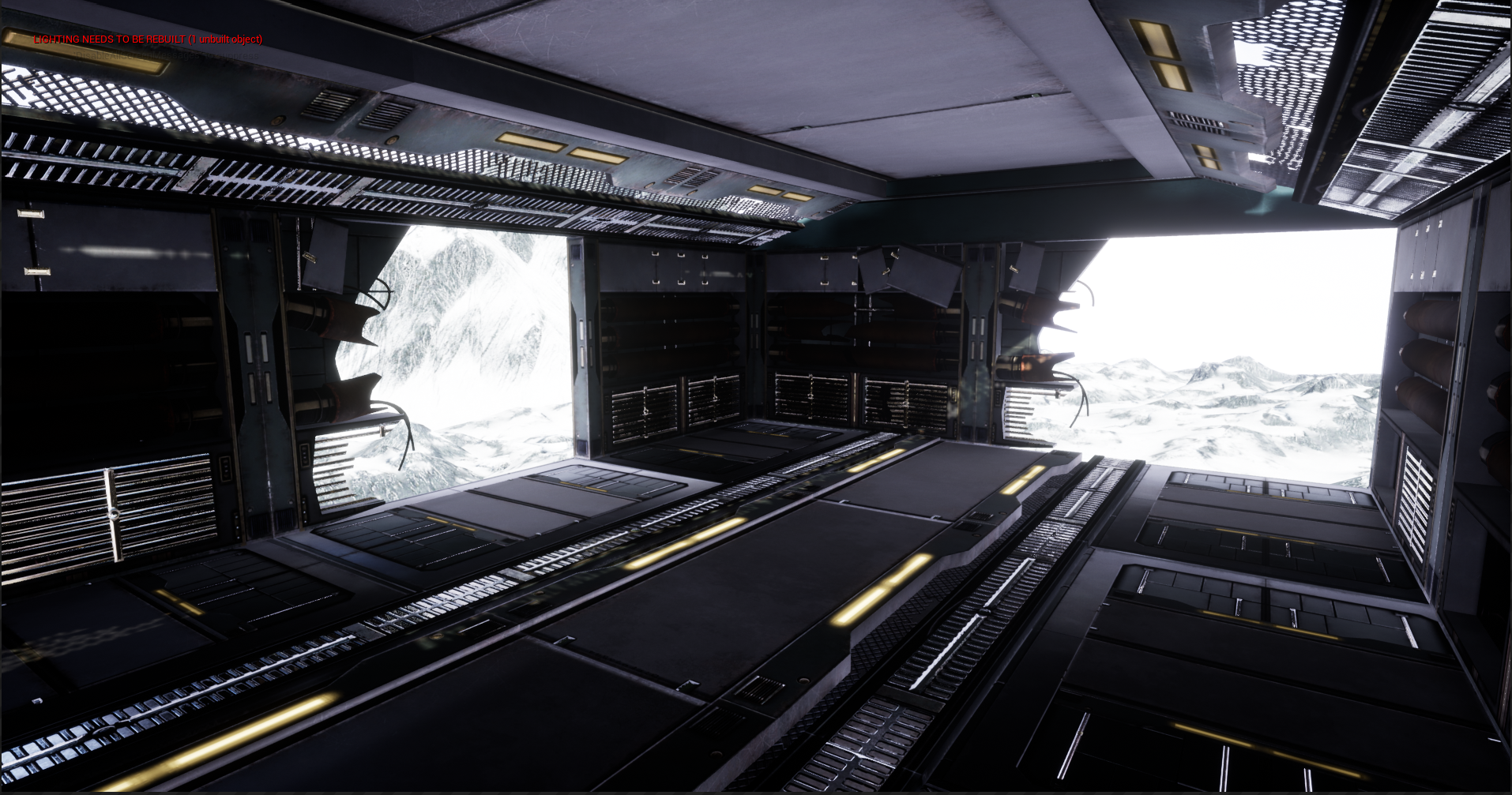
We'll talk about different types of lights and light baking in the following tutorial.
© 2025 Edward Leks. All rights reserved.