Lesson #7 Player Controller
Importing files
Unreal Engine 4 already includes an FPS player controller, which is a great way to get started. Click "Add/Import" in the content browser, then "Add feature or content pack" and import First Person Shooter.
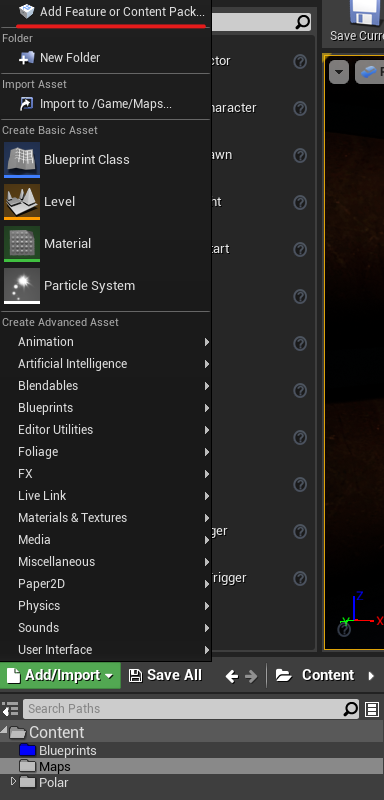
Setting up our player
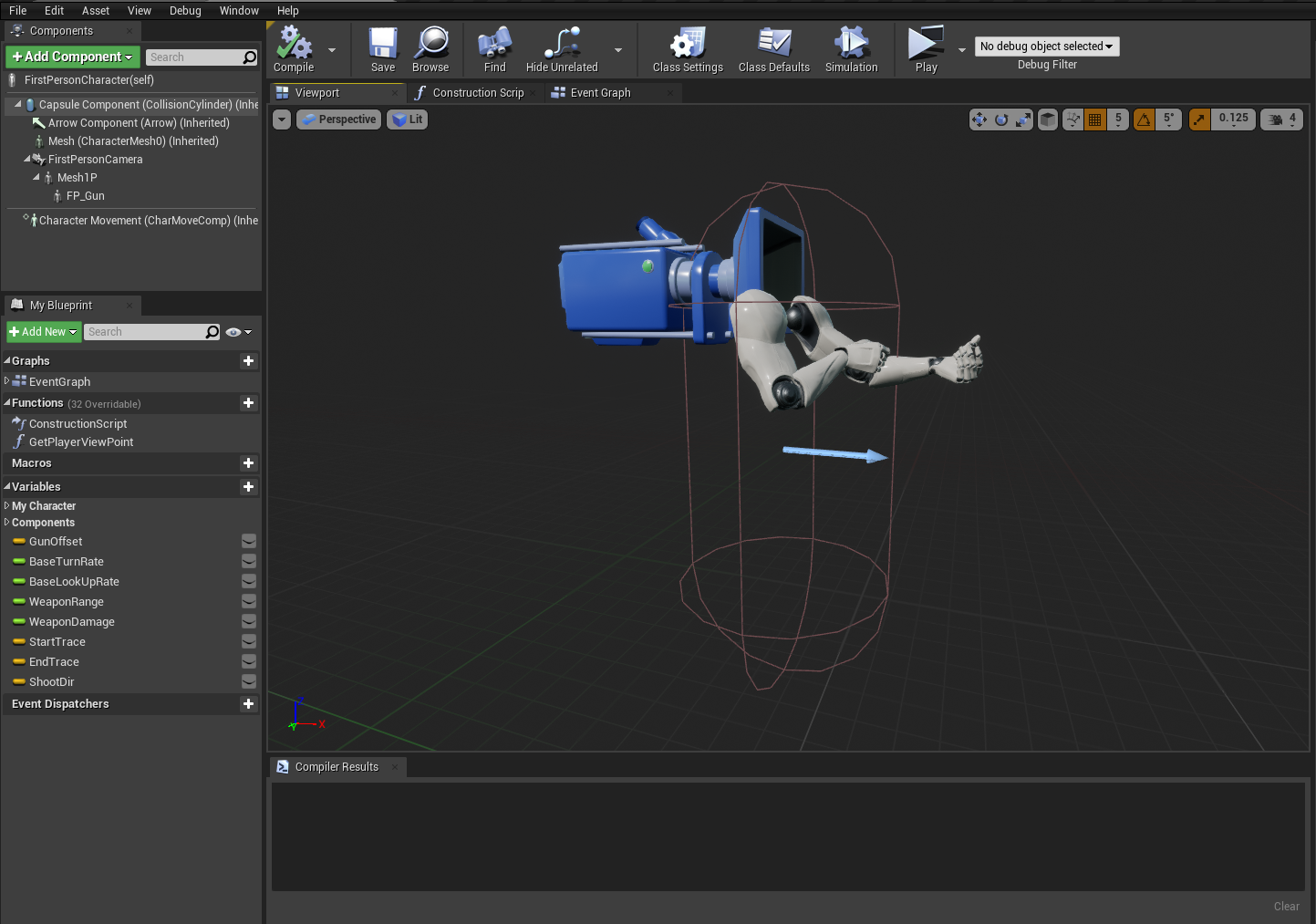
1. We only need one blueprint from the files we imported, which can be found at FirstPersonBP > Blueprints > FirstPersonCharacter. Open this blueprint by dragging it into your blueprints folder. Camera and arms should be visible.
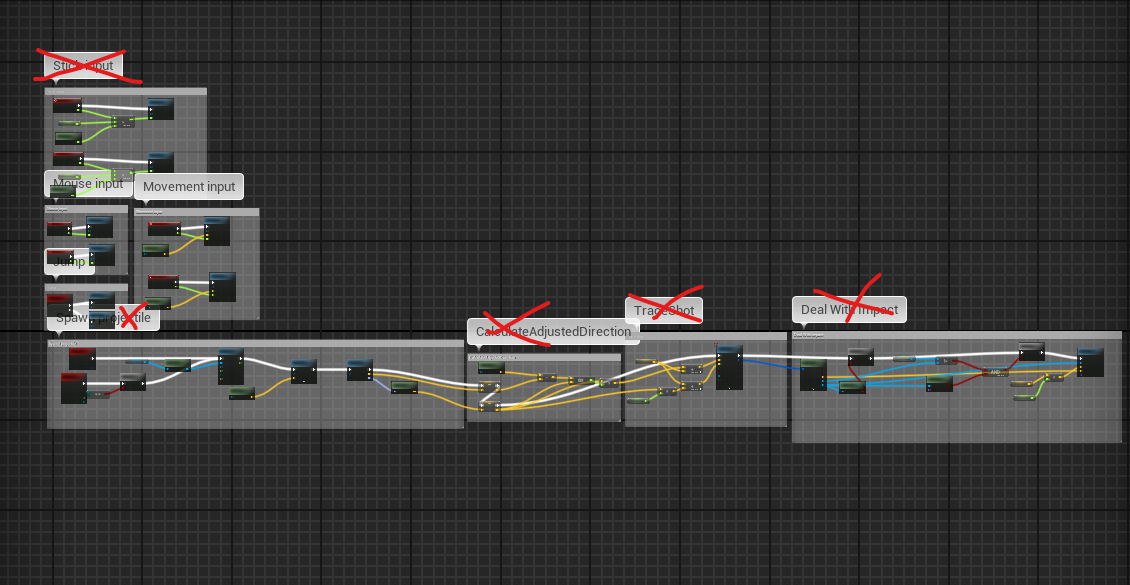
2. Now we'll open the Event Graph and remove unnecessary logic. You must remove the sections Stick input, Spawn projectile, CalculateAdjustedDirection, TraceShot, and Deal With Impact. None of that is required for our course.
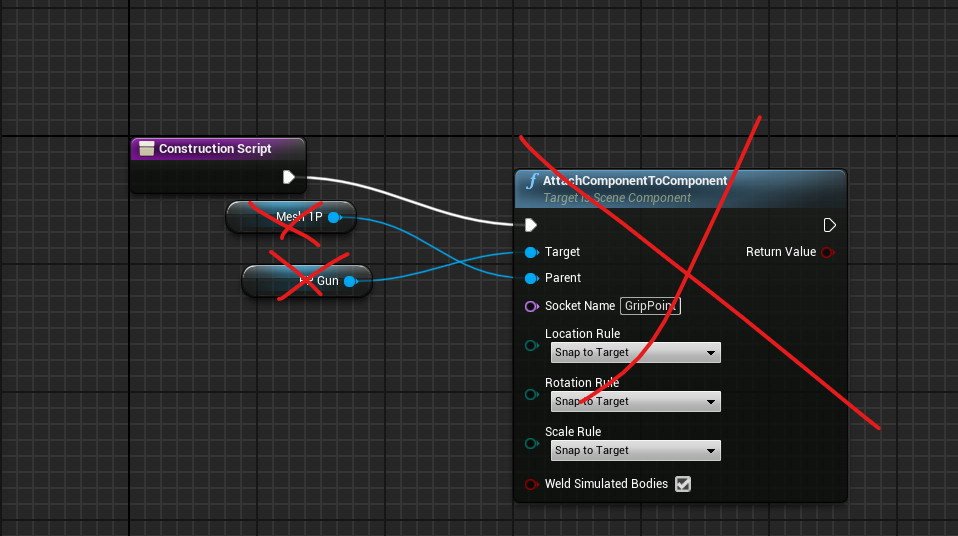
3. Then go to Construction script and delete everything from there
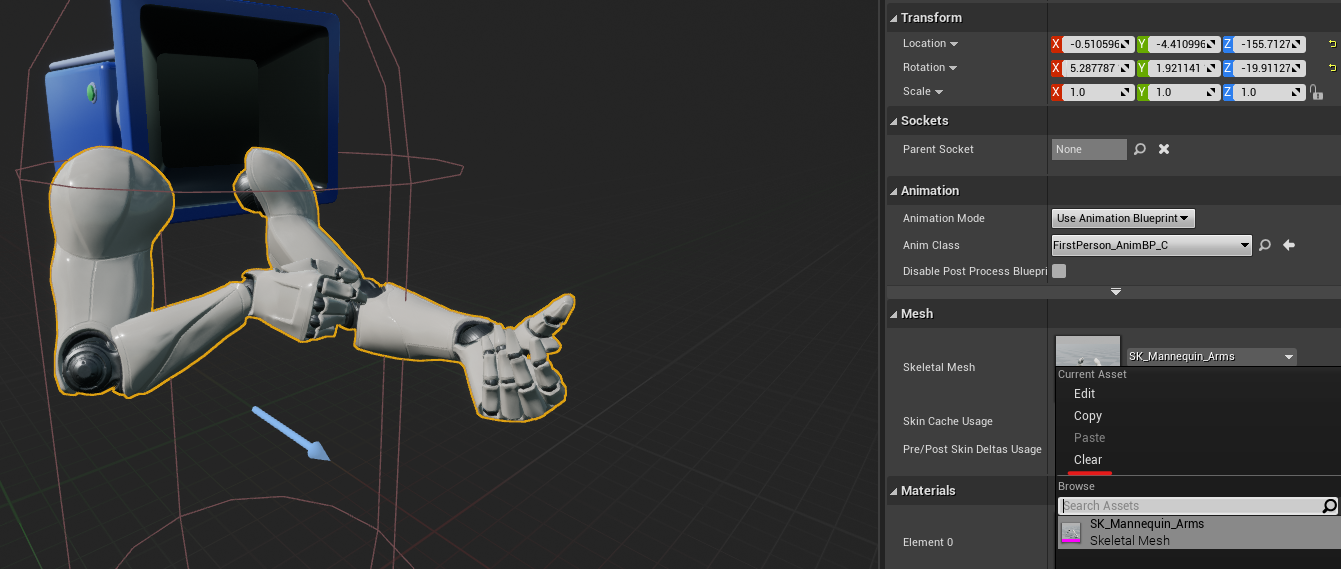
4. Go to the viewport and choose your arms. Choose "Clear" under skeletal mesh to remove arms; we'll have our own hands later. And in the Animation section > Anim class, select None.
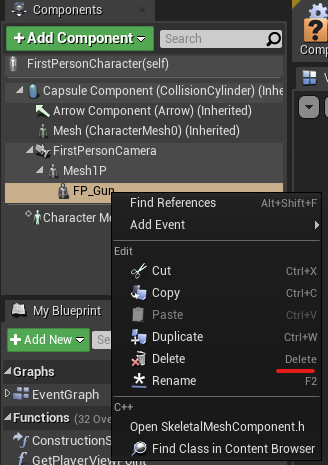
5. Also, remove the FP_Gun slot from Components before compiling and saving your blueprint. (You can also force delete every folder in the FPS pack so that your content browser does not become clogged with useless junk.)
Creating our Game mode Blueprint
The Game Mode blueprint defines some basic level information. For instance, the main player blueprint.
Let's start by designing our game mode and configuring our player.
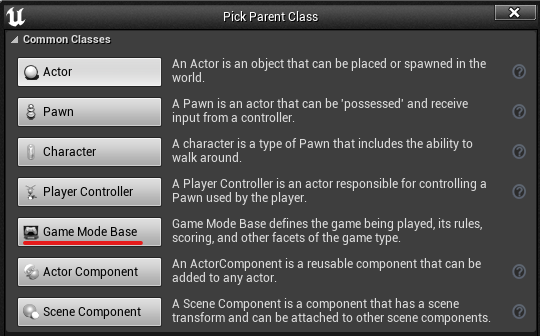
1. Create a game mode blueprint in the same way you did a lantern blueprint, but this time select Game Mode. Give it a name so you know it's yours (good practice for naming blueprints is to put BP in front of the name for example BPMainGameMode).
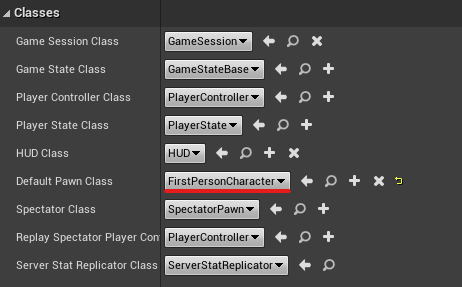
2. Open it up and select your FirstPersonCharacter blueprint in the details section under default pawn class. Compile and save the code.
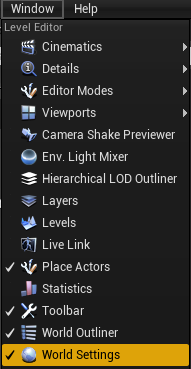
3. To use this game mode, you must first set the Level. To begin, you must first open the World settings. Navigate to Window > World settings and select Show in Editor. It will appear next to the Details panel.
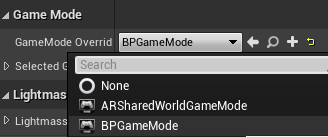
4. Choose your game mode blueprint from the GameMode Override dropdown in the world settings panel. When you press the play button, it will now use your player controller blueprint.
Tweaking player controller
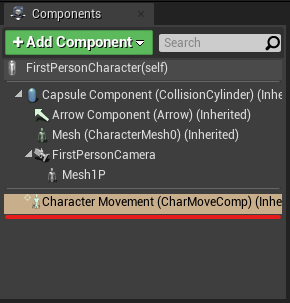
Change the settings for the character movement component in your player blueprint. You can change a variety of settings to make your player move however you want.
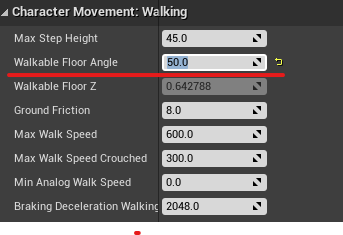
Currently, our player is unable to climb the stairs provided by the Polar content pack. To correct this, we must increase the Walkable Floor Angle. It worked perfectly when I set it to 50. Don't forget to compile and save your work.
In the following lesson, we'll look at how to import animation and models into Unreal Engine.
© 2025 Edward Leks. All rights reserved.